
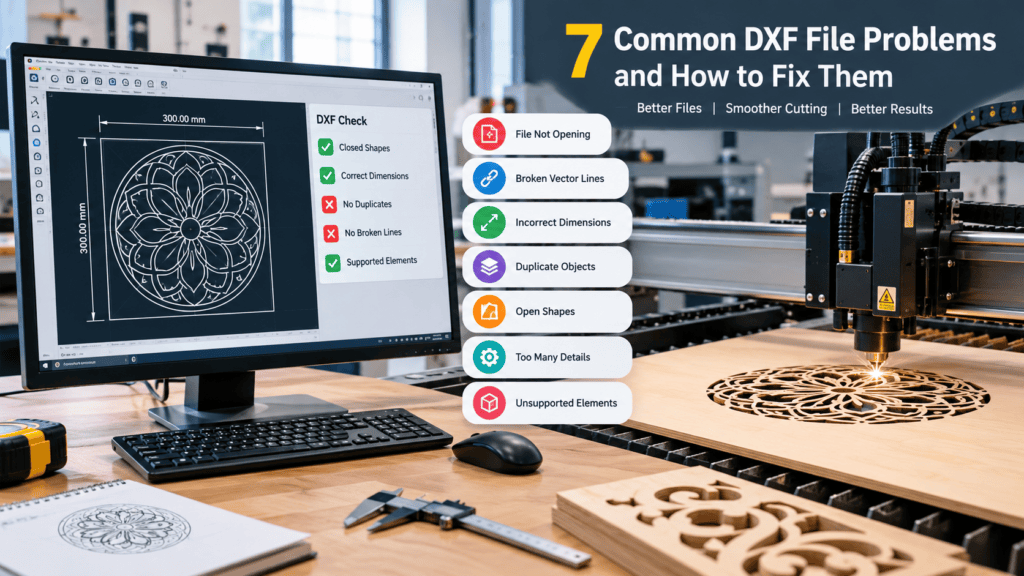
7 Common DXF File Problems and How to Fix Them
DXF files are widely used for CNC routing, laser cutting, engraving, and other digital manufacturing applications. They allow designers to transfer technical drawings and vector designs between different CAD programs and cutting machines. However, even a small mistake in a DXF drawing can create problems during manufacturing.
Understanding common DXF file problems is important for anyone working with CNC routers and laser cutting machines. These errors can affect cutting accuracy, waste material, and interrupt your production process. Learning how to identify and fix them can help you prepare cleaner and more reliable designs.
In this guide, we will explain seven common DXF file problems, why they occur, and how you can solve them before sending your design to a CNC or laser cutting machine.
How to Identify Common DXF File Problems Before Cutting
Before starting any cutting project, it is important to inspect your DXF drawing in suitable CAD software. Checking the file before manufacturing can help you identify missing lines, incorrect dimensions, overlapping objects, and other design issues.
Here are seven common DXF file problems and their practical solutions.
1. DXF File Is Not Opening Properly
One of the most common DXF file problems is when a file refuses to open in CAD software or displays an error message. This can happen because of file corruption, unsupported DXF versions, or compatibility issues between different software applications.
How to Fix It:
-
Try opening the file in another compatible CAD program.
-
Check whether the file has the correct .dxf extension.
-
Ask for another copy if the downloaded file appears corrupted.
-
Try importing the drawing instead of opening it directly.
-
Save or export the drawing using a DXF version supported by your cutting software.
Always check the file in your intended software before beginning production.
2. Missing or Broken Vector Lines
Missing or broken lines can cause serious problems during CNC routing and laser cutting. If a design contains incomplete outlines, the cutting machine may not follow the intended shape correctly.
This issue can occur when objects are accidentally deleted, lines are not properly connected, or the drawing is exported incorrectly.
How to Fix It:
-
Open the design in CAD software.
-
Zoom in and inspect the areas where lines appear incomplete.
-
Use line-extension or trimming tools to repair broken connections.
-
Reconnect endpoints where necessary.
-
Export the corrected drawing and inspect it again.
A complete and continuous outline helps the machine follow the intended cutting path.
3. Incorrect Dimensions and Scaling
Incorrect dimensions are another frequent problem when preparing DXF files for manufacturing. A design that appears correct on the computer screen may become too large or too small after importing it into cutting software.
This usually happens because of incorrect unit settings, scaling errors, or differences between millimetres and inches.
How to Fix It:
-
Confirm whether your project uses millimetres or inches.
-
Check the dimensions of important objects.
-
Compare the imported drawing dimensions with the original design.
-
Adjust the scale if necessary.
-
Save the file after confirming the correct measurements.
Always verify the actual dimensions before cutting expensive materials.
4. Duplicate or Overlapping Lines
Duplicate lines occur when two or more identical vector paths overlap in the same location. This is one of the common DXF file problems that can cause unnecessary machine movement and repeated cutting.
For laser cutting, duplicate paths may cause the same area to be cut more than once. This can damage the material or produce unwanted burn marks.
How to Fix It:
-
Inspect the drawing for overlapping objects.
-
Use duplicate-object detection tools if available.
-
Remove unnecessary repeated lines.
-
Check the cutting paths after cleaning the drawing.
-
Preview the toolpath before starting the machine.
Removing duplicate geometry helps create a cleaner and more efficient cutting process.
5. Open Shapes and Unclosed Paths
Many CNC and laser cutting designs require closed outlines to define the areas that need to be cut. When endpoints are not connected, the software may fail to recognize the intended shape.
For example, a rectangle with a small gap between two endpoints may not be recognized as a closed cutting boundary.
How to Fix It:
-
Inspect the endpoints of each shape.
-
Use join or close-path commands where appropriate.
-
Connect endpoints that should meet.
-
Check complex designs for small gaps.
-
Run a geometry or drawing validation check if your software provides one.
Make sure every cutting boundary is properly closed before exporting the final DXF file.
6. Too Many Unnecessary Details
Highly detailed DXF designs can sometimes create difficulties during manufacturing. Very small lines, tiny decorative elements, and complicated patterns may not be suitable for every material or cutting machine.
These details can increase cutting time and may produce weak or fragile sections in the finished product.
How to Fix It:
-
Remove unnecessary decorative elements.
-
Simplify complicated vector paths.
-
Avoid extremely small gaps and thin sections.
-
Consider the thickness and properties of your material.
-
Adjust the design according to your machine’s capabilities.
A simpler and cleaner design can often produce more consistent manufacturing results.
7. Unsupported Drawing Elements
Some DXF drawings contain objects or elements that are not supported by the software used for CNC routing or laser cutting. These may include certain text objects, dimensions, hatches, splines, or other complex drawing features.
When unsupported elements are imported, they may disappear, change appearance, or fail to generate the expected cutting paths.
How to Fix It:
-
Check which DXF elements your cutting software supports.
-
Convert text into outlines or polylines when necessary.
-
Convert unsupported objects into compatible geometry.
-
Remove unnecessary dimensions and annotations.
-
Export the drawing again and inspect the result.
Using compatible vector elements helps ensure that your design transfers correctly between software applications.
How to Prevent Common DXF File Problems
Fixing errors is important, but preventing them before manufacturing can save time and material. By understanding common DXF file problems, you can check your designs before sending them to a CNC router or laser cutter.
Follow this simple checklist before using any DXF design:
-
Check file compatibility: Make sure your software supports the DXF version.
-
Verify dimensions: Confirm the correct units and measurements.
-
Inspect vector lines: Look for missing, broken, or overlapping paths.
-
Close all cutting shapes: Ensure the required outlines are properly connected.
-
Remove unnecessary details: Simplify geometry that may affect cutting quality.
-
Check unsupported elements: Convert objects into compatible vector geometry where required.
-
Preview the toolpath: Review the cutting process before starting the machine.
Following these steps can help reduce manufacturing errors and improve the reliability of your designs.
Where to Find Suitable DXF Designs for CNC and Laser Cutting
Using properly prepared DXF designs can make your manufacturing workflow easier. Whether you are creating decorative wall art, signs, nameplates, organizers, or custom laser-cut products, choosing a suitable design is an important part of the process.
At DXFPortal, you can explore digital designs created for CNC routing and laser cutting projects. Before purchasing or using any design, always review its file formats, dimensions, and compatibility with your machine and software.
If you are new to this format, read our guide on What Are DXF Files? A Complete Guide for CNC and Laser Cutting.
You can also learn more about preparing designs by reading our article on How to Prepare a DXF File for CNC Routing and Laser Cutting.
Final Thoughts
Common DXF file problems can affect the accuracy, quality, and efficiency of CNC routing and laser cutting projects. Issues such as broken lines, incorrect dimensions, duplicate objects, open shapes, and unsupported elements should be checked before manufacturing.
Fixing common DXF file problems before manufacturing helps improve design accuracy and creates a smoother CNC or laser cutting workflow. Always inspect your files carefully and make sure they are suitable for your machine and material.
With proper file preparation and regular checks, you can reduce avoidable errors and achieve more reliable results in your CNC and laser cutting projects.