
DXF Layers for Laser Cutting: 6 Simple Steps to Set Them Up
Setting up DXF layers for laser cutting is one of the easiest ways to get cleaner, more accurate results. Layers let you tell your laser which lines to cut through, which to engrave and which to ignore. Without them, your machine may treat every line the same way, and that can ruin a sheet of material.
This guide explains what DXF layers are and shows you 6 simple steps to set up DXF layers for laser cutting. If you’re new to the format, start with our guide on what DXF files are.
What Are DXF Layers for Laser Cutting?
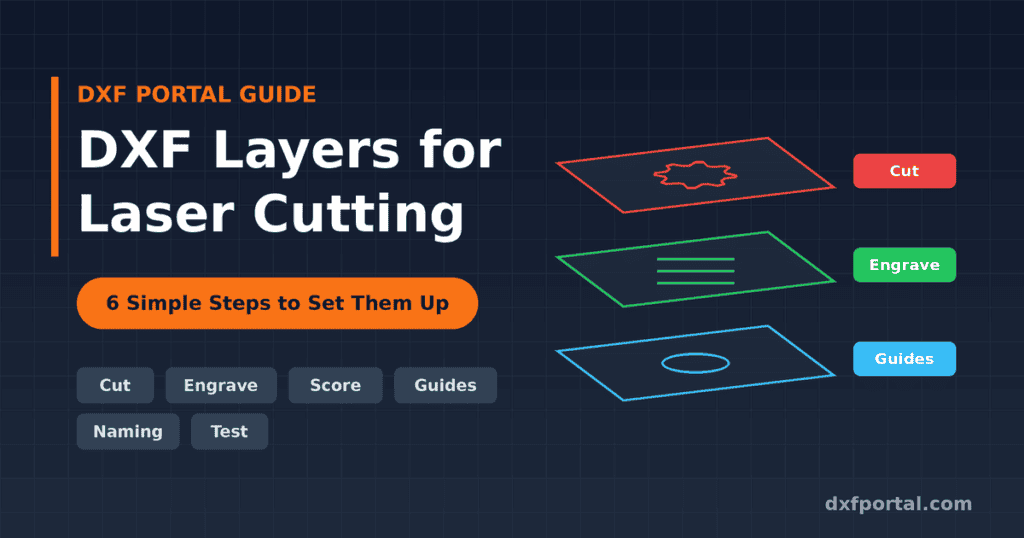
A layer is like a transparent sheet in your drawing. Each layer holds a group of lines and can have its own name, colour and line type. You can show, hide or lock layers independently.
DXF layers for laser cutting matter because many laser programs assign settings by layer or by colour. For example, one layer might cut through the material at full power, while another engraves lightly on the surface.
Why DXF Layers for Laser Cutting Matter
- Different operations: cutting, engraving and scoring need different power and speed settings.
- Cleaner results: the laser does the right job on each line.
- Easier editing: you can hide or lock layers while you work.
- Fewer mistakes: guides and notes won’t get cut by accident.
The 4 DXF Layers for Laser Cutting Most Projects Need
| Layer | Purpose | Example Colour* |
|---|---|---|
| CUT | Lines that cut all the way through | Red |
| ENGRAVE | Filled areas or text burned onto the surface | Blue or green |
| SCORE | Light lines that mark but don’t cut through | Black |
| GUIDES | Notes, dimensions and construction lines (not cut) | Grey or blue |
*Colours are only a common convention. Check what your laser software expects, since each program handles layers and colours a little differently.
6 Simple Steps to Set Up DXF Layers for Laser Cutting
Step 1: Open Your File
Open your design in software that supports DXF layers for laser cutting, such as Inkscape or LibreCAD. If you need help, see how to open DXF files and our list of free CNC design software.
Step 2: Check the Existing Layers
Many DXF files already include layers. Open the layer panel (in Inkscape, press Ctrl + Shift + L; in LibreCAD, use the layer list on the side) and see what is there. Purchased files often come with layers set up, but check them before you cut.
Step 3: Create DXF Layers for Laser Cutting With Clear Names
Add a new layer for each job. Use short, obvious names such as:
CUTENGRAVESCOREGUIDES
Clear names help you, and they help anyone else who opens your file.
Step 4: Move Each Line to the Right Layer
Moving each line to the right layer is the most important part of setting up DXF layers for laser cutting. Select the lines for each operation and move them to the matching layer:
- Outer shapes and holes go on CUT.
- Text and filled artwork go on ENGRAVE.
- Light fold or marking lines go on SCORE.
- Dimensions, notes and construction lines go on GUIDES.
Step 5: Clean Up the Drawing
Before saving, check your layers for problems:
- Closed paths: cut shapes should be fully closed.
- Duplicate lines: overlapping lines make the laser cut twice.
- Stray objects: delete tiny leftover lines or points.
- Hidden layers: unhide everything and make sure nothing unwanted is left on the cut layer.
If you find errors, see our guide to 7 common DXF file problems and how to fix them.
Step 6: Save, Import and Test
Save the file as DXF (or SVG if your software prefers it; see DXF vs SVG or how to convert DXF to SVG). Import it into your laser software and assign settings to each layer or colour. Then run a small test cut on scrap material before the real job. Our guide to laser cutting for beginners explains test cuts and safety in more detail.
Common DXF Layers for Laser Cutting Mistakes to Avoid
- Putting everything on one layer, so the laser can’t tell cuts from engraving.
- Leaving guides on the cut layer, which means they get cut.
- Using vague names like “Layer 1” or “Layer 2”.
- Forgetting hidden layers, since some software still processes them.
- Assuming colours carry over: some programs ignore the colours saved in a DXF, so check after importing.
Tips for Better DXF Layers for Laser Cutting
- Keep the cut layer last in the order if your software lets you, so inside holes are cut before the outside shape.
- Use separate layers for different materials if one project uses wood and acrylic.
- Save a backup copy before reorganising layers.
- When you buy a design, choose files that already have clear layers. Read how to choose the best DXF files for what to look for.
For a full workflow from file to machine, follow our guide on how to prepare a DXF file for CNC routing and laser cutting.
Frequently Asked Questions
Do all DXF files have layers?
No. Some files have everything on a single layer, so you may need to set them up yourself.
What colour should the cut layer be?
Many laser programs use red for cutting, but it depends on your software. Check your machine’s documentation.
Can I use layers in an SVG file?
Yes. SVG files support layers and groups, though how your laser software reads them can differ from DXF.
Why did my laser cut a line I wanted to engrave?
The line was probably on the wrong layer or had the wrong colour. Check the layer settings in your laser software.
How many DXF layers for laser cutting does a project need?
Most projects need only 2 to 4: cut, engrave, score and guides.
Conclusion
Good DXF layers for laser cutting save material, time and frustration. Create clear layers, put each line on the right one, clean up your file and run a test cut before the final job.
Whether you buy ready-made designs or make your own, well-organised DXF layers for laser cutting make every project easier.
Looking for designs with clean, ready-to-use layers? Browse our DXF and SVG collection at DXF Portal and download your next project today.